
Complete your monthly submission
Every operational day must have a status before you can submit. You can complete the month in one of three ways: by marking each day yourself, by uploading a completed spreadsheet, or by confirming a month your workforce management system has already filled in. The method depends on the data source configured for the facility. See Set up your data source.
Before you start
Plan: Available on all plans. Automated import requires a paid plan.
- Requirements: You need an open submission for the month.
Mark the month manually
Use this method if your data source is Manual.
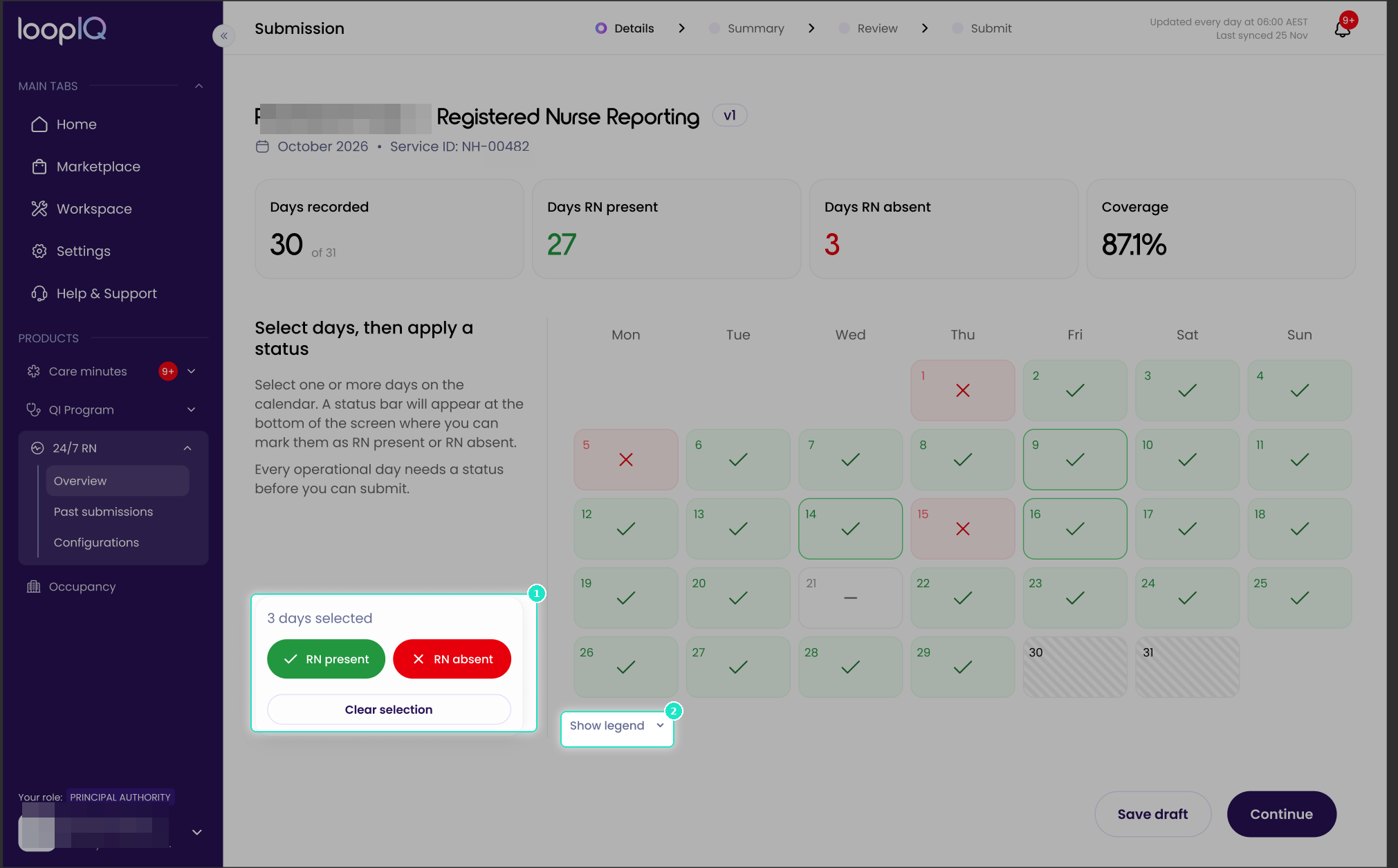
- Select one or more days on the calendar.
- Use the status bar (2) to mark the selected days as RN present or RN absent.
- Click Show legend (3) to view the four day statuses.
The counters above the calendar update as you mark each day.
Upload a completed spreadsheet
Use this method if your data source is Spreadsheet. Complete the Loop IQ coverage template offline, then upload it to the submission. Each day is populated from your file.
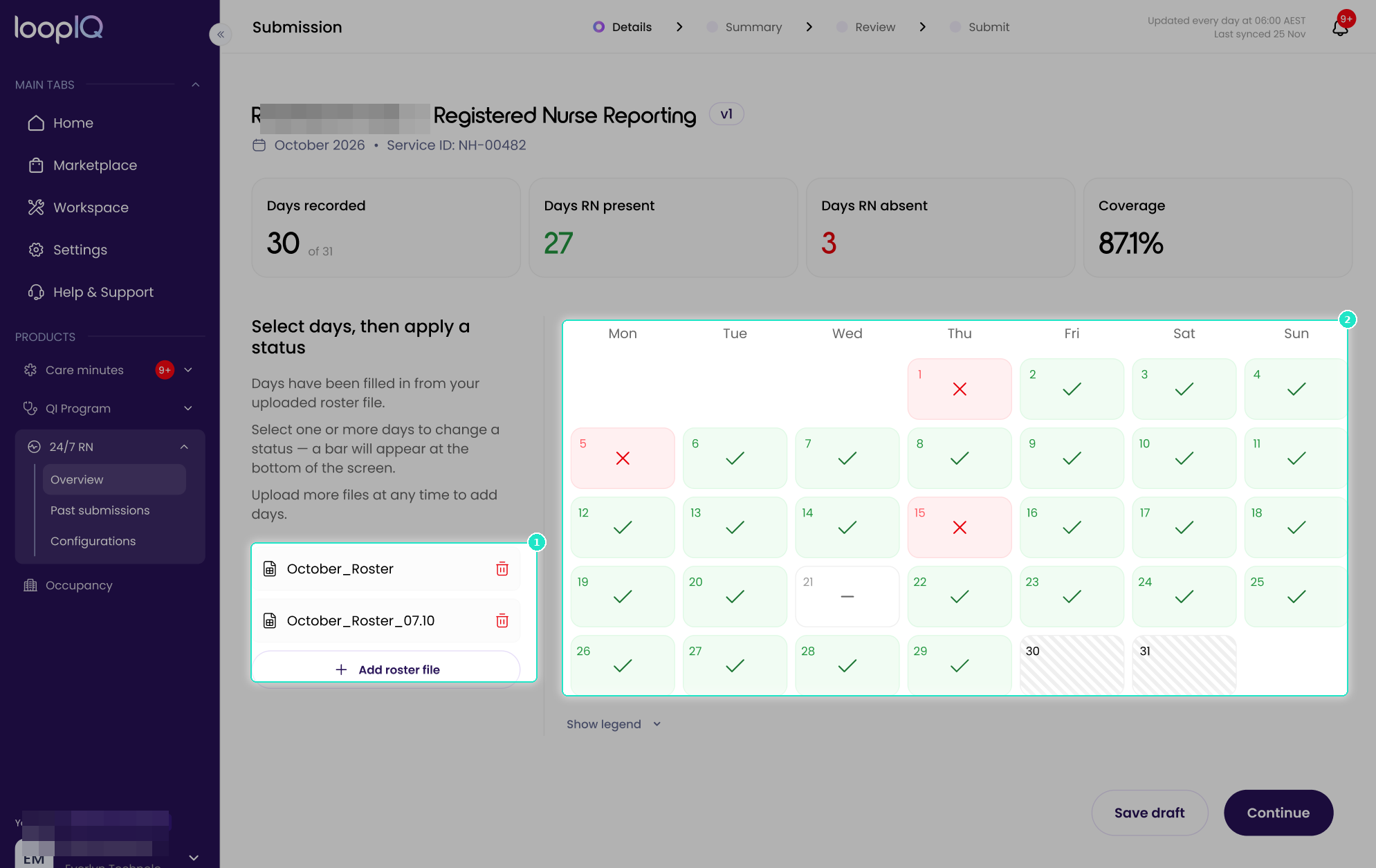
You can upload as often as needed during the month, and each upload brings in the information from that file.
- On the submission page, upload your completed template or add a new one (1).
- Review every day populated by the upload (2).
- Resolve any conflicts the upload raises. See Resolve conflicts.
- Correct any day that does not reflect what occurred.
Conflicts: If an upload contains different information for a day already recorded in the submission, Loop IQ does not overwrite it. Instead, it raises a conflict for you to resolve.
Note: Only .xlsx files that match the Loop IQ template are accepted. To download the template, see Set up your data source.
Confirm an automated month
Use this method if your data source is Automated. Once your workforce management system is connected, Loop IQ fills in the month overnight, so each day’s attendance is available the following day and the month builds as it progresses. Your role is to review the data rather than enter it.
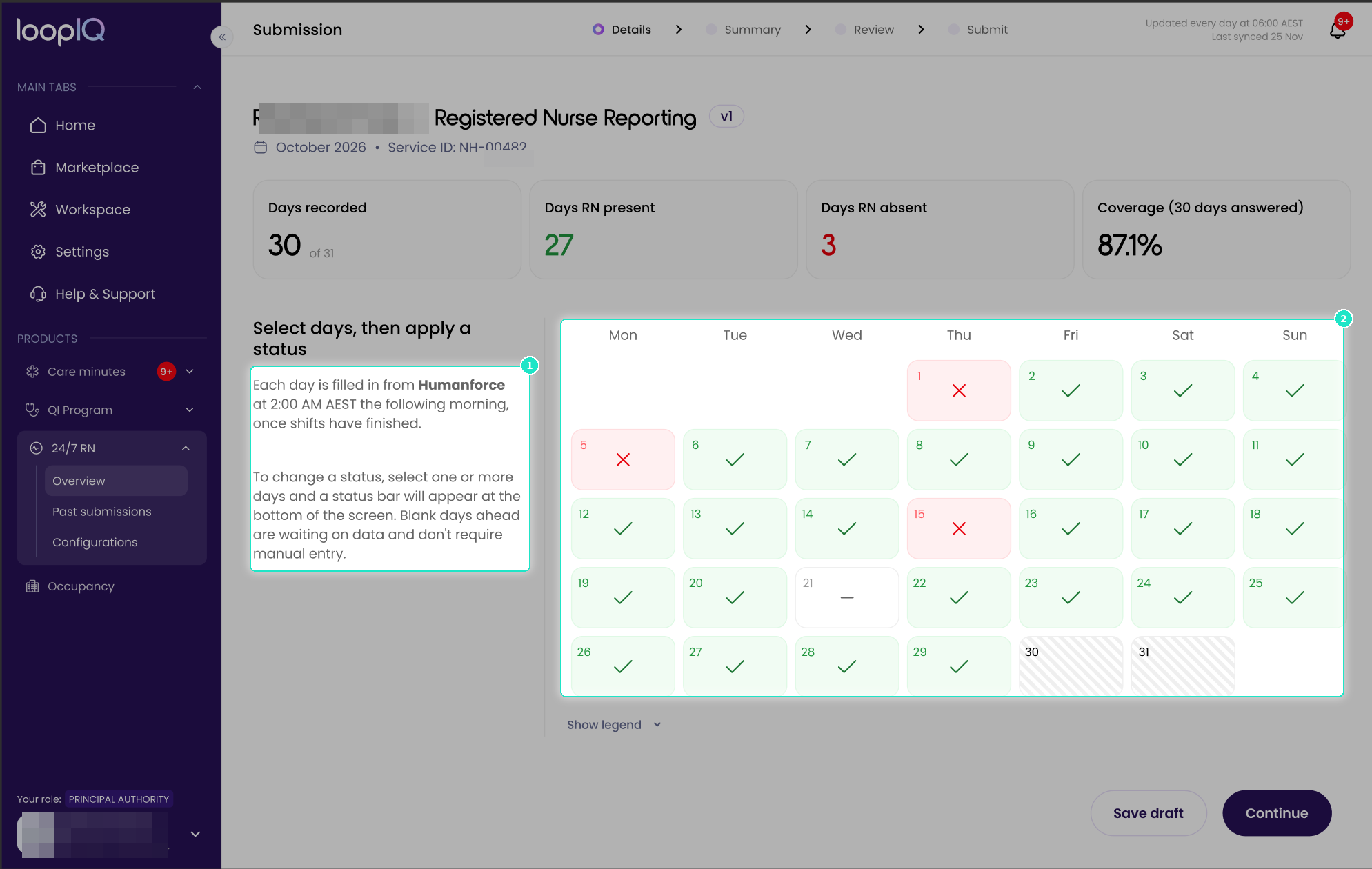
- Check Days recorded (1) to see how many days have been populated so far.
- Review every day on the calendar (2).
- Resolve any day Loop IQ has flagged as a conflict. See Resolve conflicts.
- Correct any day that does not reflect what occurred.
Flagged days: If imported attendance differs from what is already recorded for a day, Loop IQ does not replace it. Instead, it flags the day as a conflict for you to resolve.
Important: Imported data is a starting point, not a final record. You remain responsible for everything you lodge, so review every day before continuing. Delegated Responsibility and Alternative arrangement are never pre-populated, as this information is not held in workforce management systems. These must always be entered manually.
Was this article helpful?
Can't find what you are looking for?
Loop IQ customers - log a support ticket.
Not yet a customer? Email our support team.
 Log a support ticket
 support@loopiq.com.au