
Resolve conflicts
A conflict is raised when two sources record the same day differently. For example, this could be an uploaded roster and your connected workforce management system, or a new upload and a day already recorded in the submission. Loop IQ does not choose between the sources or overwrite one with the other. Instead, it flags the day and asks you to decide.
Before you start
Plan: Available on all plans.
- Requirements: You need an open submission with at least one conflict, raised by a spreadsheet upload or by your connected workforce management system.
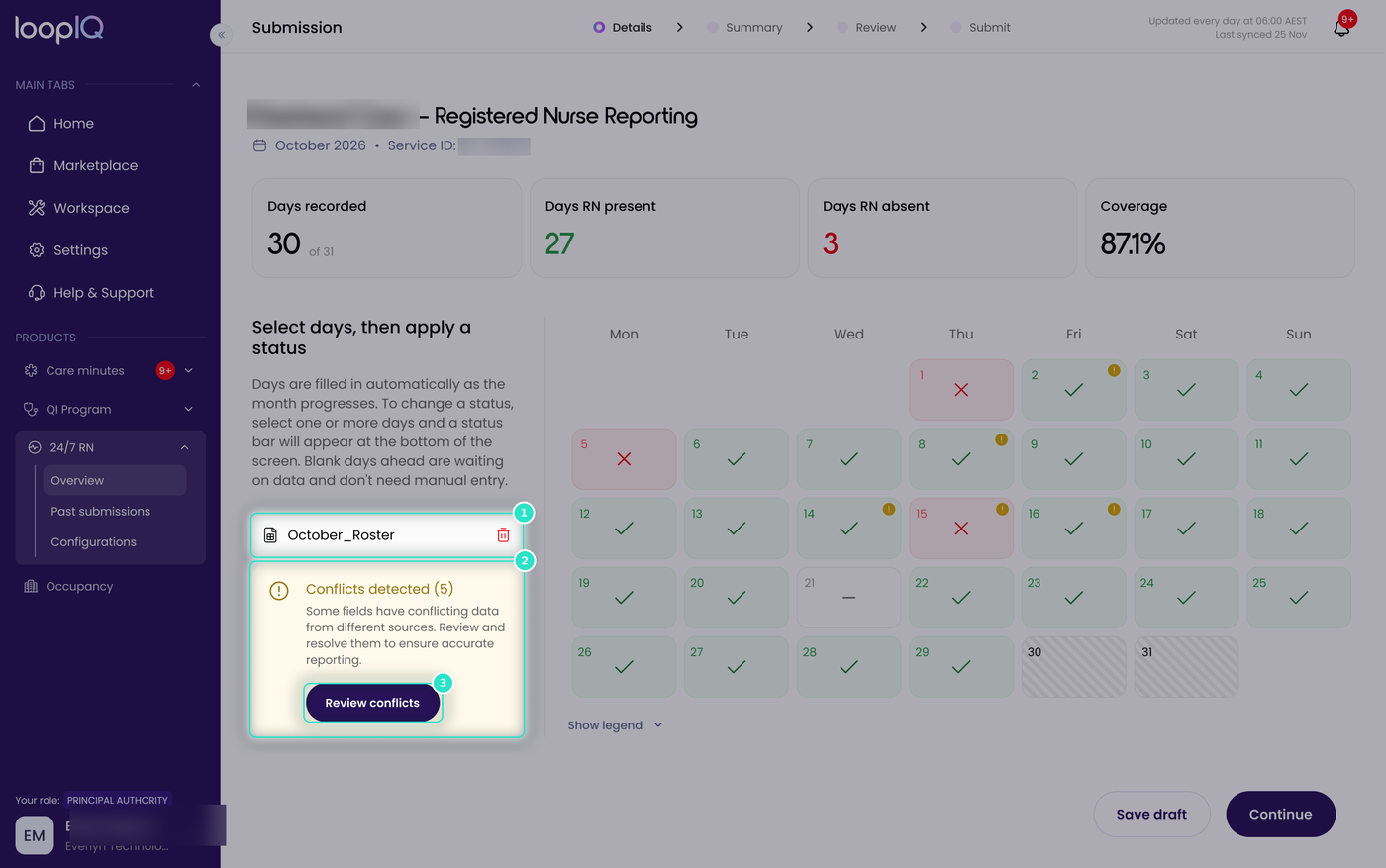
- On the Details step, check the panel beside the calendar. If the conflict came from a spreadsheet upload, the file is shown here (1).
- Check Conflicts detected (2) for the number of days with conflicting data. These days are also marked on the calendar.
- Click Review conflicts (3).
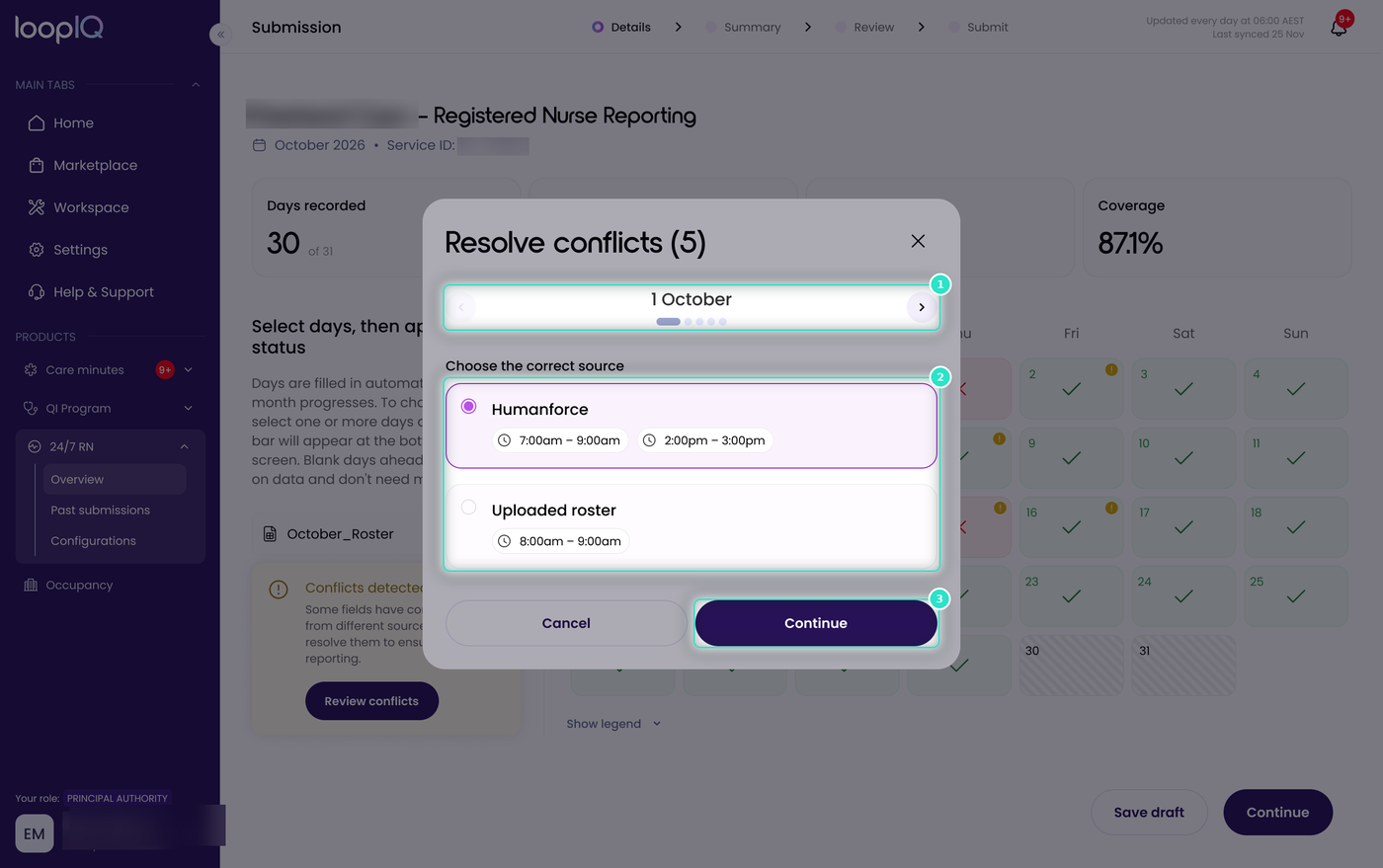
- Conflicts are shown one day at a time (1), and the dots indicate how many remain.
- Under Choose the correct source (2), compare the data from each source and select the one that reflects what occurred.
- Click Continue (3) to save your selection and move to the next day.
Important: A conflict does not mean either source is wrong, only that they disagree, and only you know which is correct. Select the source that reflects what actually occurred at the facility, as this is what you are declaring.
Note: A month with unresolved conflicts is not complete. Resolve conflicts as they appear rather than leaving them until you are ready to lodge.
Was this article helpful?
Can't find what you are looking for?
Loop IQ customers - log a support ticket.
Not yet a customer? Email our support team.
 Log a support ticket
 support@loopiq.com.au