
Connect Telstra Health Clinical Manager
Loop IQ reads clinical data from Clinical Manager to pre-fill the clinical fields of your QI Program submission. The connection is read-only and requires approximately one hour of your time.
Before you start
Plan: Paid integration. See Free and paid integrations.
- Access: the Manage integration configurations permission is required.
- Clinical Manager administrator: access to the Clinical Manager admin panel.
- IT contact: a person who can update your instance's allow-list.
- Authorised officer: a person who can sign on behalf of your organisation.
Create an account for Loop IQ
- In the Clinical Manager admin panel, create a user for developer@loopiq.com.au.
- Assign the user a temporary password.
If your organisation operates more than one provider entity, create one account per provider. Loop IQ will supply the email address for each.
Set the permissions
- Create a permission set named LoopIQAPI.
- Select View for each permission listed below.
- Leave Modify and Remove cleared for all permissions.
- Assign the permission set to the Loop IQ account.
- Resident care: Resident details · Leave/hospitalisation · Progress notes · Handover sheet and handover report · Care plan · Care statement · Assessment & ACFI forms · Charts · Alerts · Resident reports · Care plan reports · Form and NQI reports · Profile.
- Funding: AN-ACC.
- Occupancy: Occupancy reports.
- User management: User reports.
- Reporting: Resident reports · User reports · Care plan reports · Form and NQI reports · Occupancy reports · Facility management reports · Regional management reports · Organisation management reports · Analytics.
- Medication and Admin: none. Loop IQ reads medication data from BestMed, not from Clinical Manager. See Connect BestMed.
Allow Loop IQ's IP addresses
Ask your IT contact or the residential helpdesk to add the following IP addresses to your instance's allow-list:
- 54.66.20.29
- 13.55.118.23
- 52.65.133.228
- 4.198.168.222
- 4.200.114.123
Loop IQ cannot connect until these addresses are allowed.
Enter the details in Loop IQ
- On the Integrations page, locate Telstra Health and click Connect.
- Enter the Base URL (1), for example https://yourcompany.residential.icarehealth.com.au.
- Enter the Username of the Loop IQ account (2).
- Enter the account's Password (3).
- Click Connect (4).
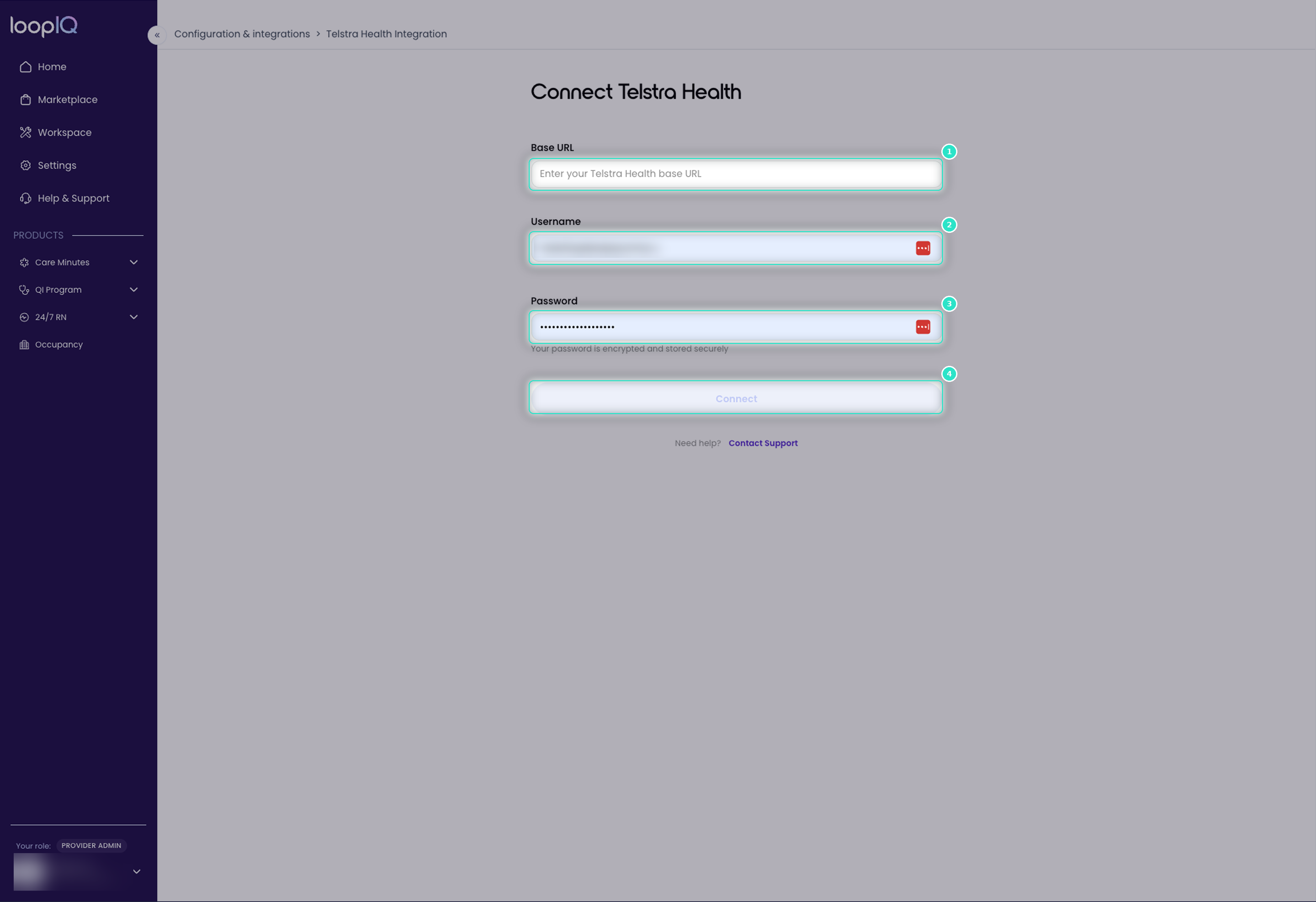
The card status changes to Connected. After the first read, the data status shows the time of the last refresh.
What to expect
- Initial data load: importing previous quarters can take several hours, or overnight for larger organisations. Allow approximately 48 hours before expecting a complete pre-fill.
- Mapping session: your clinical and quality staff confirm how each indicator maps to the way your organisation records it. See the Configuration articles in QI Program.
- NAPS IDs and addresses: Loop IQ matches facilities using NAPS ID and full address, including postcode. Confirm both now, as a mismatch later appears as missing data.
For more on confirming the first refresh, see Data status explained.
Was this article helpful?
Can't find what you are looking for?
Loop IQ customers - log a support ticket.
Not yet a customer? Email our support team.
 Log a support ticket
 support@loopiq.com.au