
Connect Humanforce
Loop IQ reads roster and timesheet data from Humanforce to pre-fill workforce data in the products that use it. The connection is read-only.
Before you start
Plan: Paid integration. See Free and paid integrations.
- Access: the Manage integration configurations permission is required.
- Humanforce administrator: access to the Humanforce admin portal, usually held by application support or IT.
- Tenant address: your Humanforce address, for example https://yourcompany.humanforce.com/.
Create an access level for Loop IQ
- In the Humanforce admin portal, create a new access level named LoopIQAPI.
- Open the access level and select the Permissions tab.
- Use the filter box to locate each permission listed below, and select View.
- Click Apply Changes. Permissions are not saved until this step is complete.
Select View for the following permissions only:
- General: Visibility of all departments · Visibility of all assigned locations · Visibility of ALL locations in system.
- Timesheets: View employees above authorisation level.
- Roster: View employees above authorisation level.
- Maintenance Screens: Employees Screen · View employees at the same authorisation level · View employees above authorisation level.
- Shift Manager: View shifts for employees.
- Roster items and timesheet data: View, so that Loop IQ can read the data as well as the employee records.
Important: Visibility of ALL locations in system determines whether Loop IQ can see every facility or only one. Without it, the connection appears healthy but returns data for a single site only.
Note: if your organisation operates more than one provider entity, create a separate access level and credential for each.
Generate the API key
- In Humanforce, generate an API key and secret for the LoopIQAPI access level. Refer to help.humanforce.com for instructions.
- Store the key and secret securely.
Enter the credentials in Loop IQ
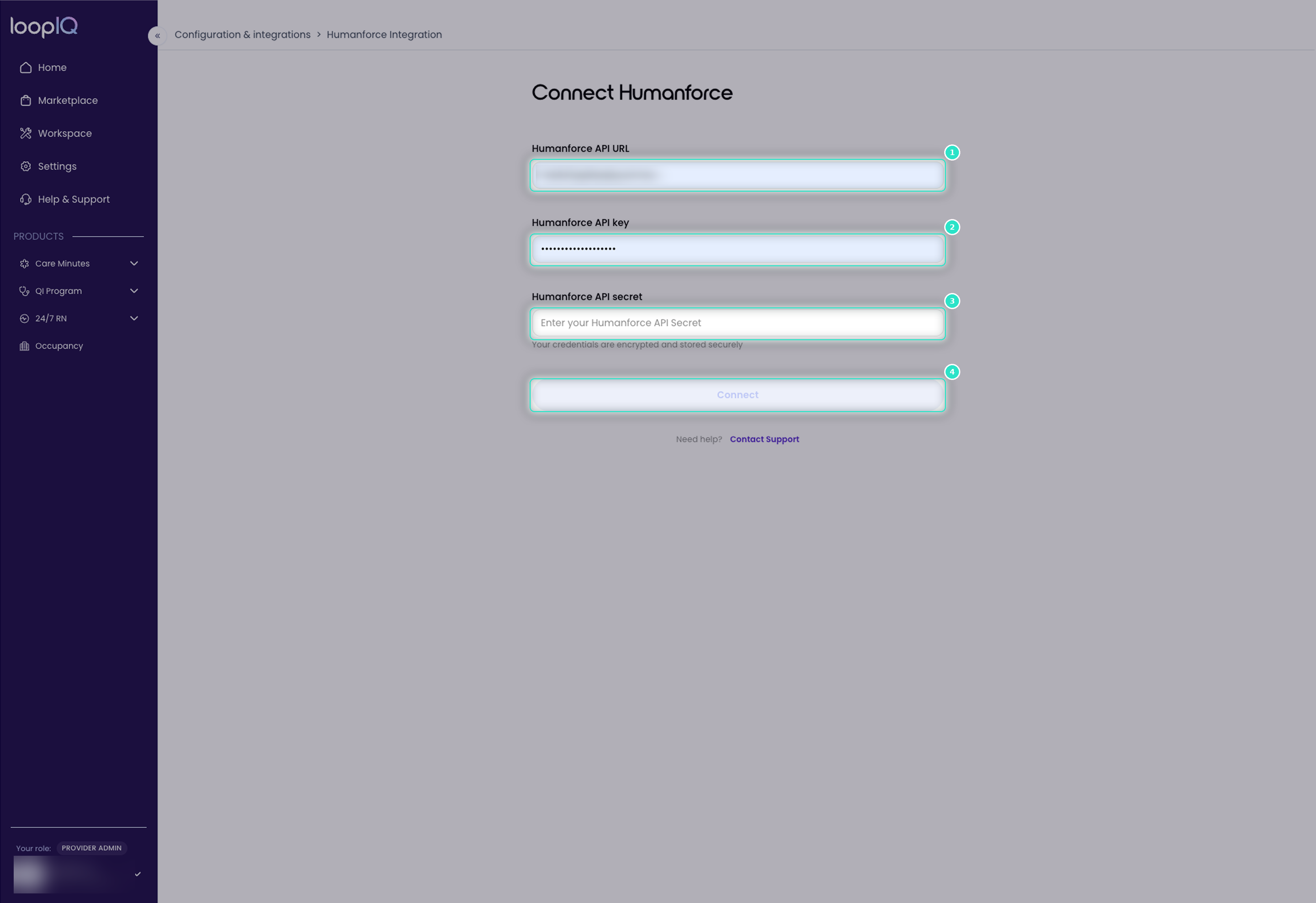
- On the Integrations page, locate Humanforce and click Connect.
- Enter the Humanforce API URL (1), which is your tenant address.
- Enter the Humanforce API key (2).
- Enter the Humanforce API secret (3).
- Click Connect (4).
The card status changes to Connected. The first read occurs within 24 hours, after which the data status shows the time of the last refresh.
Was this article helpful?
Can't find what you are looking for?
Loop IQ customers - log a support ticket.
Not yet a customer? Email our support team.
 Log a support ticket
 support@loopiq.com.au