Integration statuses explained
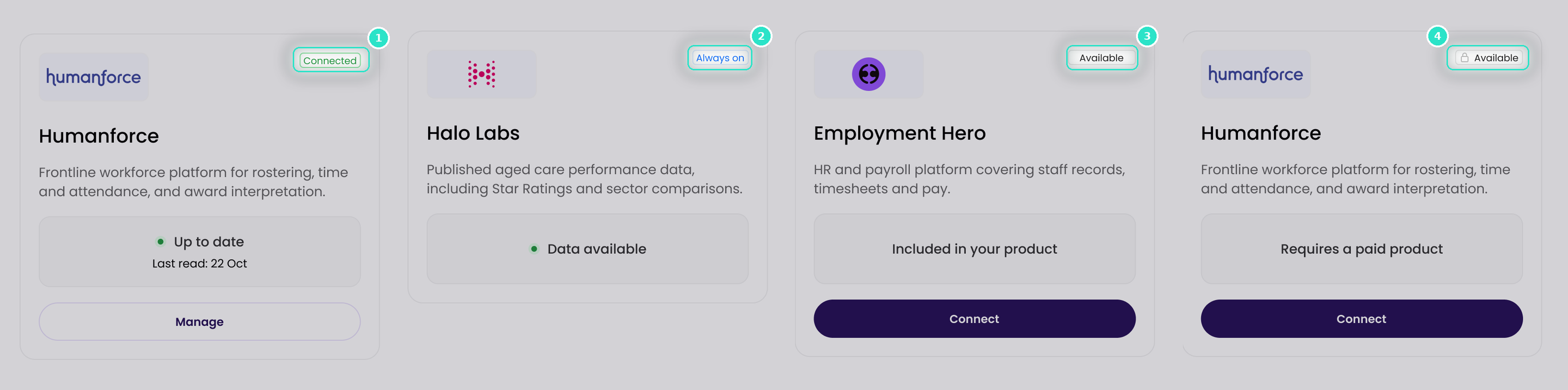
Each integration card shows a status in its top right corner, which determines the button at the foot of the card. The same statuses are available as filters at the top of the page.
Before you start
Plan: Available on all plans.
Statuses
- Connected (1): a system your organisation has connected and that is working. The status shows a tick, and the data status shows a record count and the time of the last refresh.
- Always on (2): included in your package, with no connection required. Loop IQ maintains these connections, and their data status shows Data available in place of a refresh time.
- Available (3): an additional system you can connect. On a paid plan, every available integration can be connected. On the free plan, paid integrations show a lock; selecting one opens a pop-up explaining how to unlock paid features by contacting sales.
To show one status at a time, use the filters at the top of the page: All, Connected, Always on or Available.
Card buttons
- Manage: shown on Connected and Always on cards. Opens the integration's details. See Manage a connected integration.
- Connect: shown on Available cards. A lock in place of Connect means the integration is not included in the products you subscribe to. See Free and paid integrations.
Important: Connected confirms that Loop IQ can reach the system with the credentials it holds. It does not confirm that the data is current, or that it covers every facility. Check the data status on the same card. See Data status explained.
For more on the other parts of a card, see About Integrations.
Was this article helpful?
Can't find what you are looking for?
Loop IQ customers - log a support ticket.
Not yet a customer? Email our support team.
 Log a support ticket
 support@loopiq.com.au