
New Users
This section covers opening Users, adding a new user, and checking they've been added to your workspace.
Invite team members
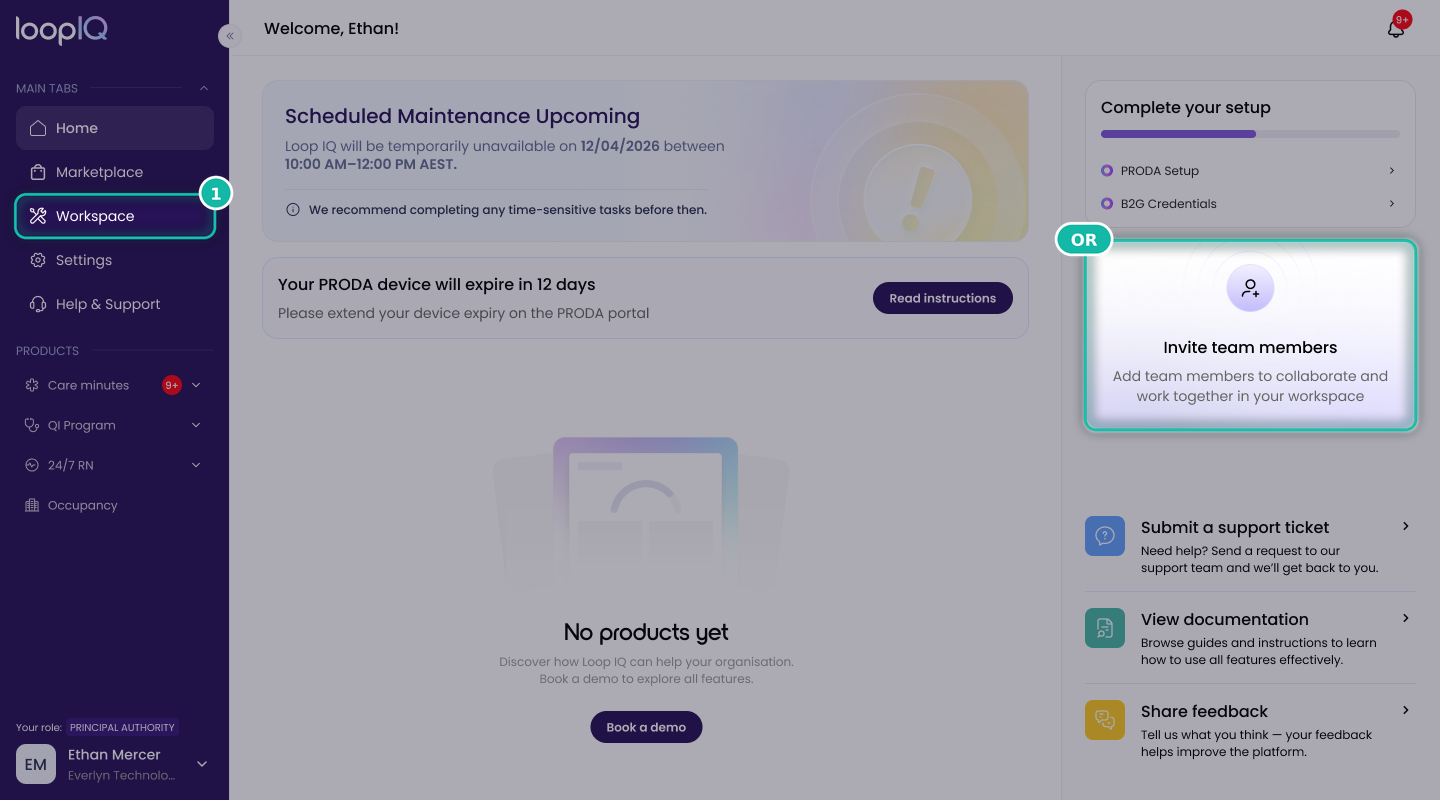
You can add a new user from the homepage or from Workspace.
Option 1: From the homepage
- On the homepage, click Invite team members.
Option 2: From Workspace
- Click Workspace in the left menu.
- Select the Users tab.
- Click Add user.
Enter the user's details
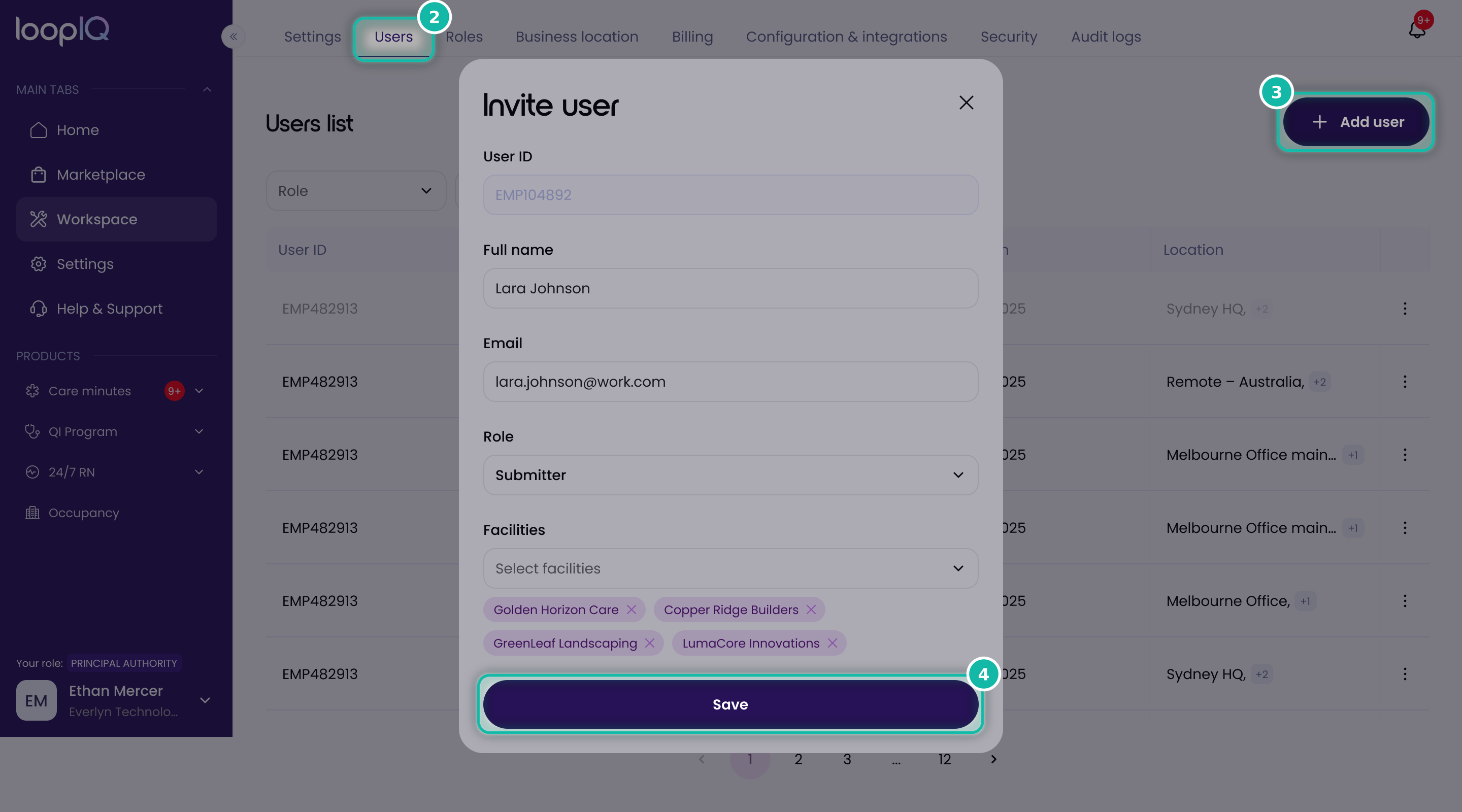
- Fill in the following:
- First name and Last name
- Role
- Facilities
- Click Add user to save.
Check the user was added
The new user will appear in the Users list, and they'll be sent an email with login instructions.
What happens next?
The new user will receive a Let's get started email with a link to log in and set up their account. To see what they'll need to do, read Let's get started email in the Getting Started section.
Was this article helpful?
Can't find what you are looking for?
Loop IQ customers - log a support ticket.
Not yet a customer? Email our support team.
 Log a support ticket
 support@loopiq.com.au