
MFA Setup Instructions
What is MFA?
MFA adds an extra security step when you log in. As well as your email and password, you confirm it's really you with a second method, such as a code from an authenticator app or a code sent to your phone.
Why it matters: even if someone gets hold of your password, they can't get into your account without completing this second step.
Set Up the Authenticator App for MFA
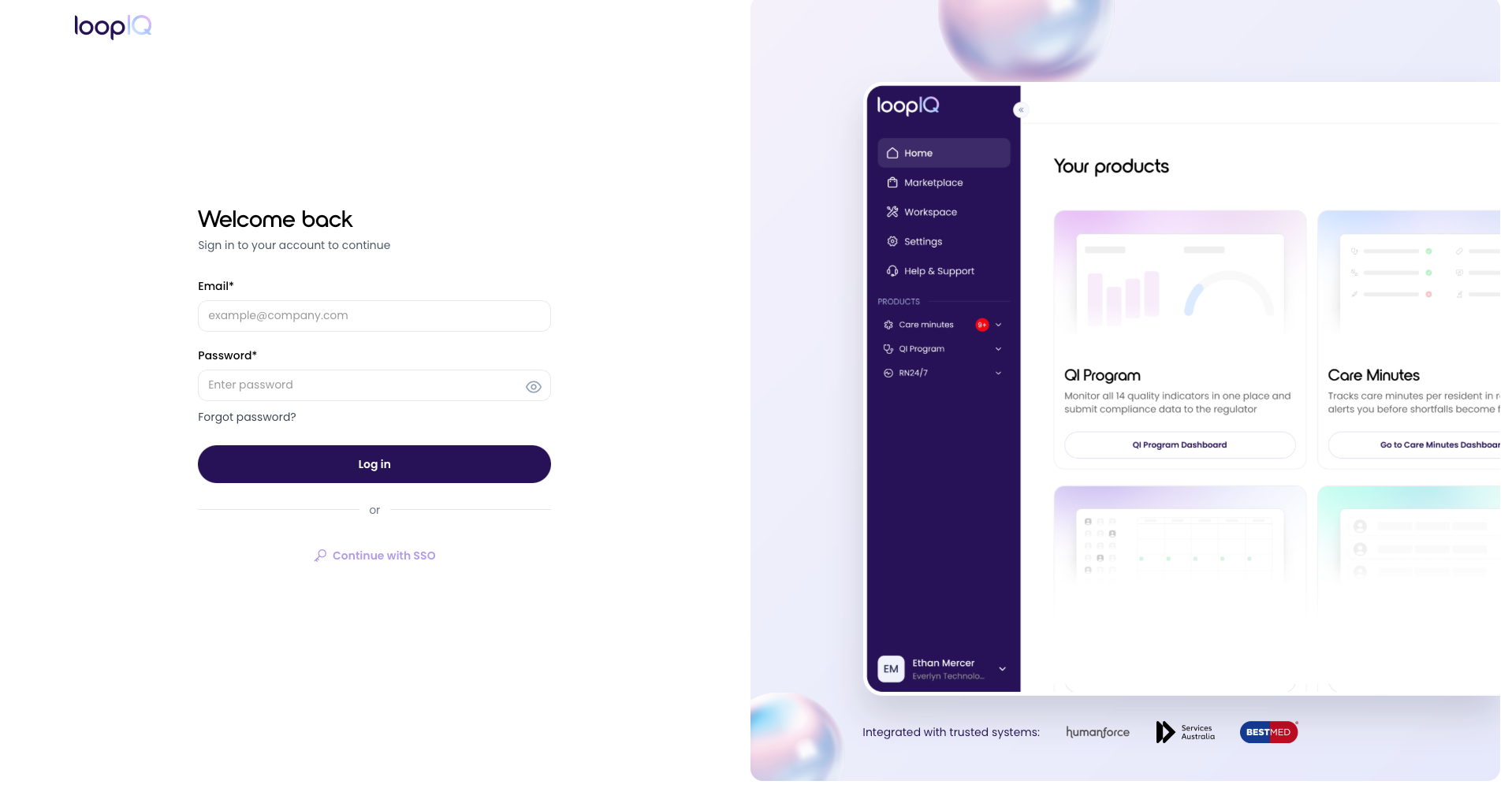
Step 1: Download an authenticator app
- On your phone, open the App Store (iPhone) or Google Play Store (Android).
- Search for an authenticator app, such as Google Authenticator, Microsoft Authenticator or Authy.
- Tap Get or Install.
- Open the app once it's installed.
Step 2: Link the app to Loop IQ
- On the Loop IQ setup screen, find the QR code.
- In your authenticator app, tap + or Add account.
- Choose Scan a QR code. The wording may differ slightly depending on the app.
- Point your phone's camera at the QR code on your screen until it's recognised.
Can't scan the QR code? In your authenticator app, choose the option to enter a setup key manually, then type in the key shown on the Loop IQ screen.
Enter the verification code
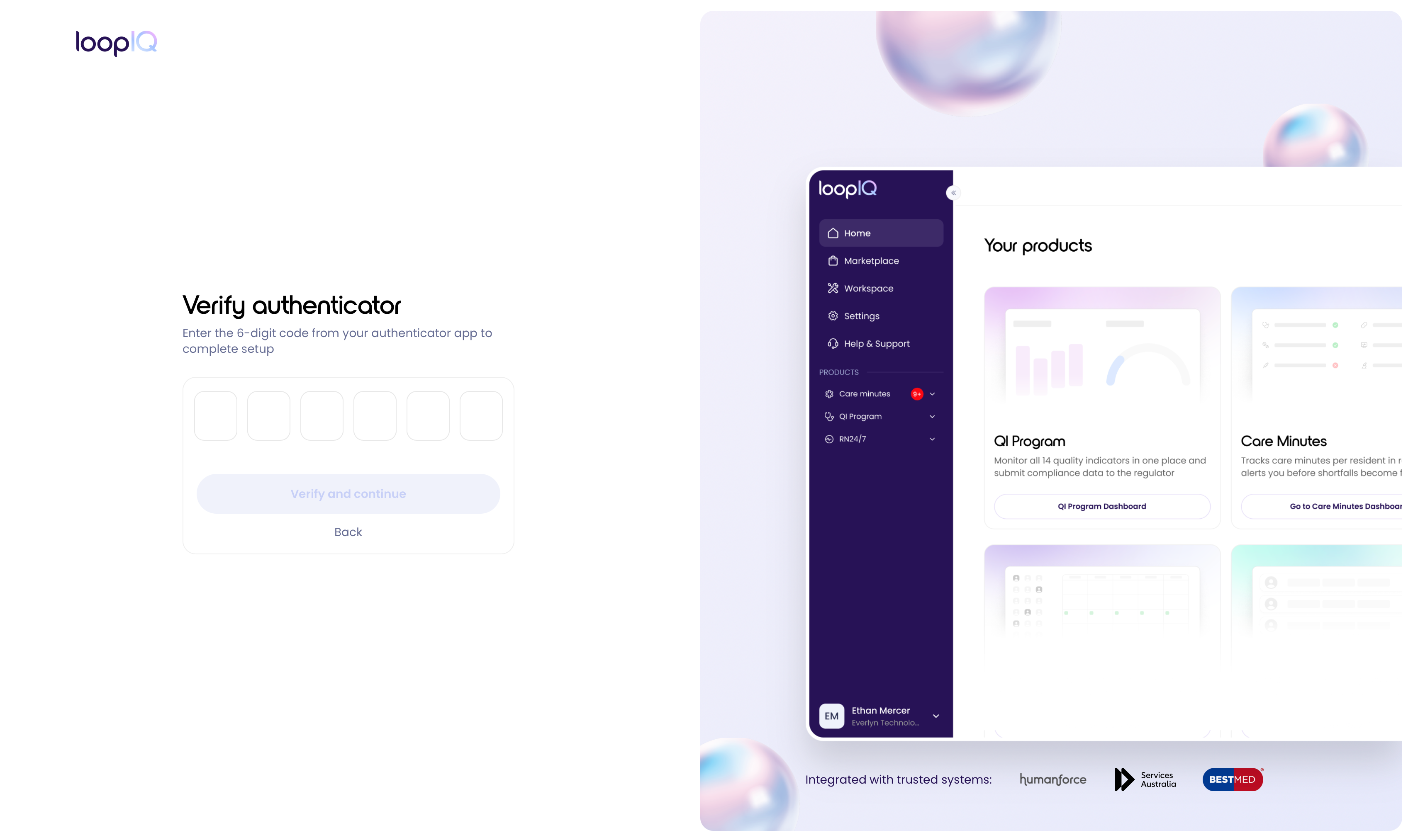
- Your authenticator app will now show a 6-digit code for Loop IQ.
- Go back to the Loop IQ setup screen.
- Enter the code exactly as it appears in the app.
- Click Submit.
Tip: codes refresh about every 30 seconds. If yours changes before you submit, enter the new one.
Finish setup
Once your code is accepted, you'll see a confirmation message and be taken back to the Loop IQ login page.
MFA is now switched on. Each time you log in, you'll need your password and a code from your authenticator app.
Was this article helpful?
Can't find what you are looking for?
Loop IQ customers - log a support ticket.
Not yet a customer? Email our support team.
 Log a support ticket
 support@loopiq.com.au