
Let's get started email
This section covers opening the Let's get started email, logging in with your temporary password, and setting your new password and mobile number.
New user email invitation
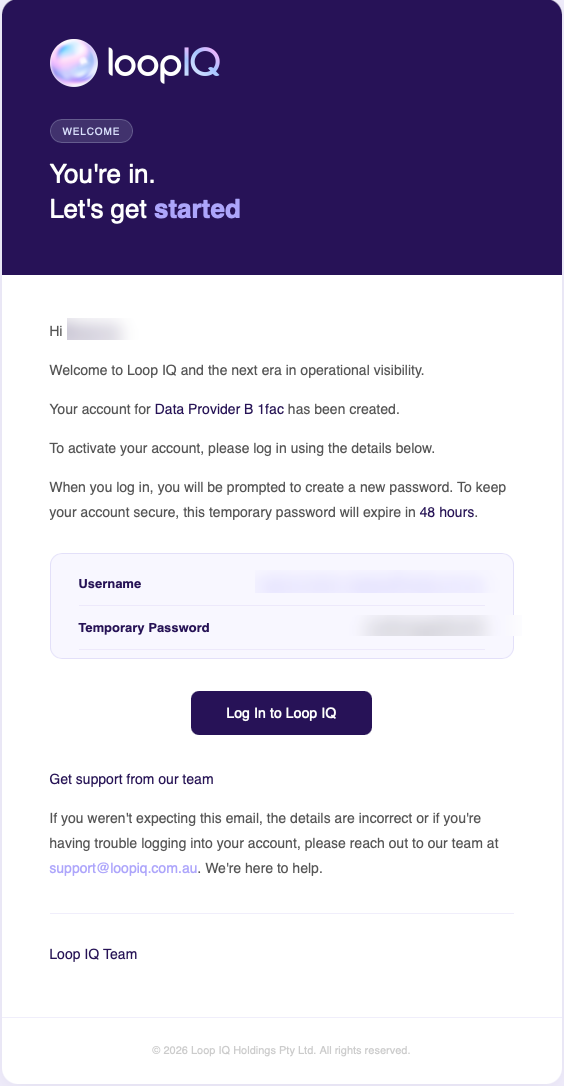
- Find the email from Loop IQ with your login instructions.
- Click the login page link in the email.
Log in with your temporary password
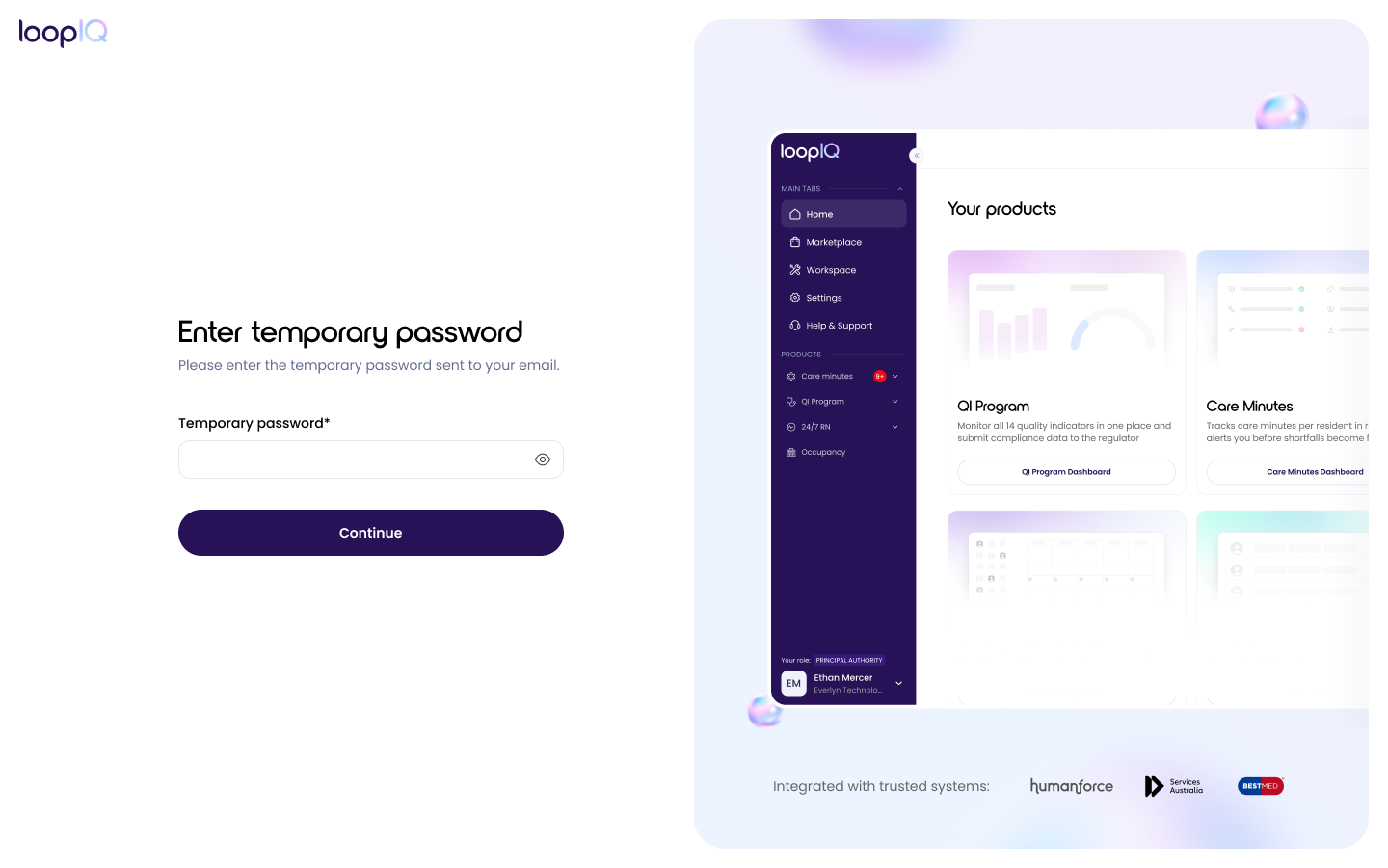
- Enter your temporary password from the email. It can only be used once.
- Click Login.
You'll be taken to the Change password page.
Set Your New Password and Mobile Number
- Enter a new password, then enter it again to confirm.
- Make sure your password meets all the requirements shown on screen.
- Enter your mobile number.
- Click Set new password.
You'll then be asked to set up an authenticator app.
Important: Keep the setup screen open. You'll need to finish setting up an authenticator app before you can use your account.
Next step: set up MFA
Was this article helpful?
Can't find what you are looking for?
Loop IQ customers - log a support ticket.
Not yet a customer? Email our support team.
 Log a support ticket
 support@loopiq.com.au