
View version history
Loop IQ records a new version of a submission each time it changes. The version chip beside the facility name shows which version you are viewing and opens the full history.
Before you start
Plan: Available on all plans. Full version history and restoring earlier versions require a paid plan.
- Requirements: You need an open submission.
View and restore a version
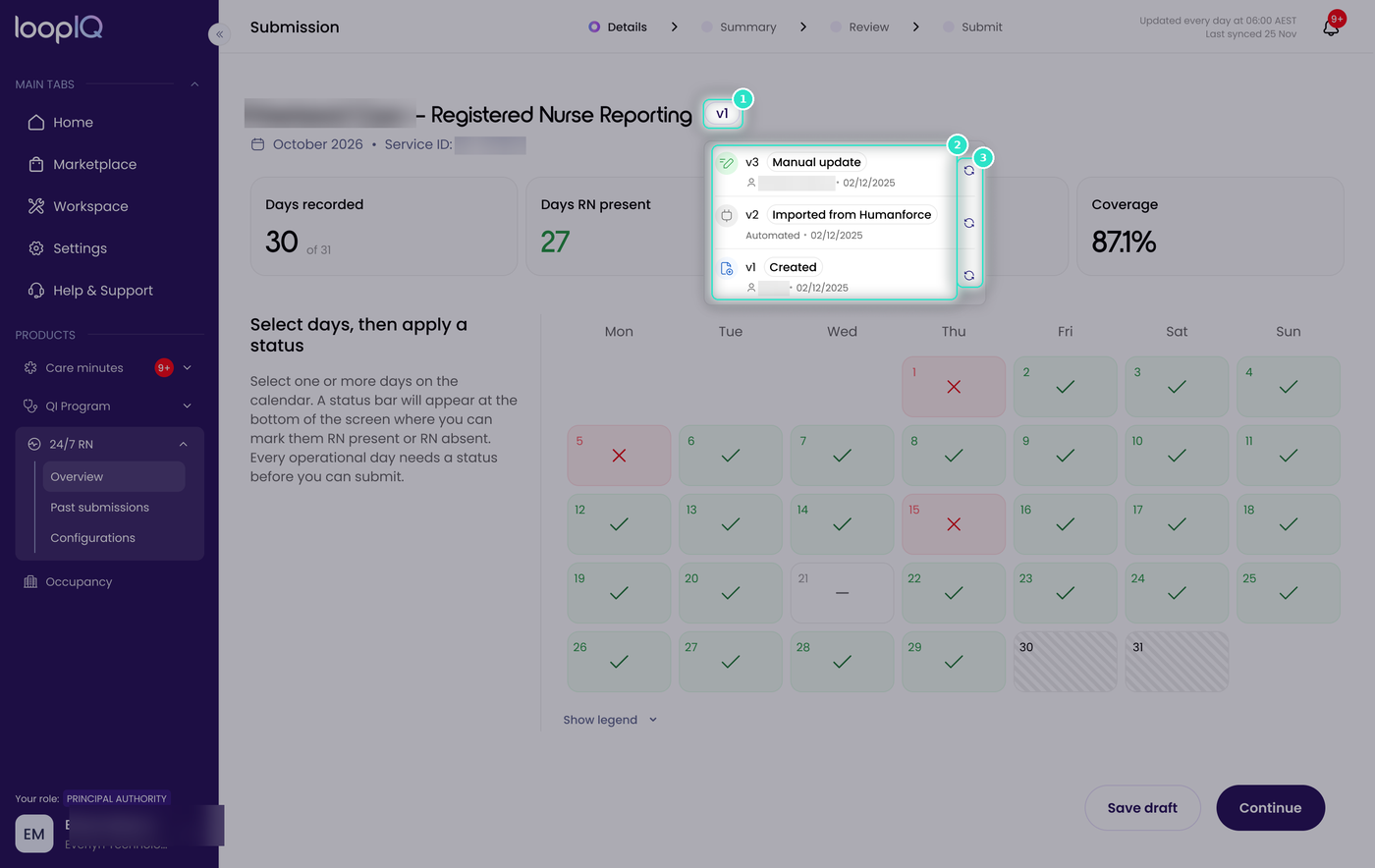
- Click the version chip beside the facility name (1).
- Review the history (2). Each entry shows what happened, such as the submission being Created, an import from your workforce management system, or a Manual update, along with who made the change and the date.
- To return the submission to an earlier version, click the restore control beside that version (3).
On the free plan
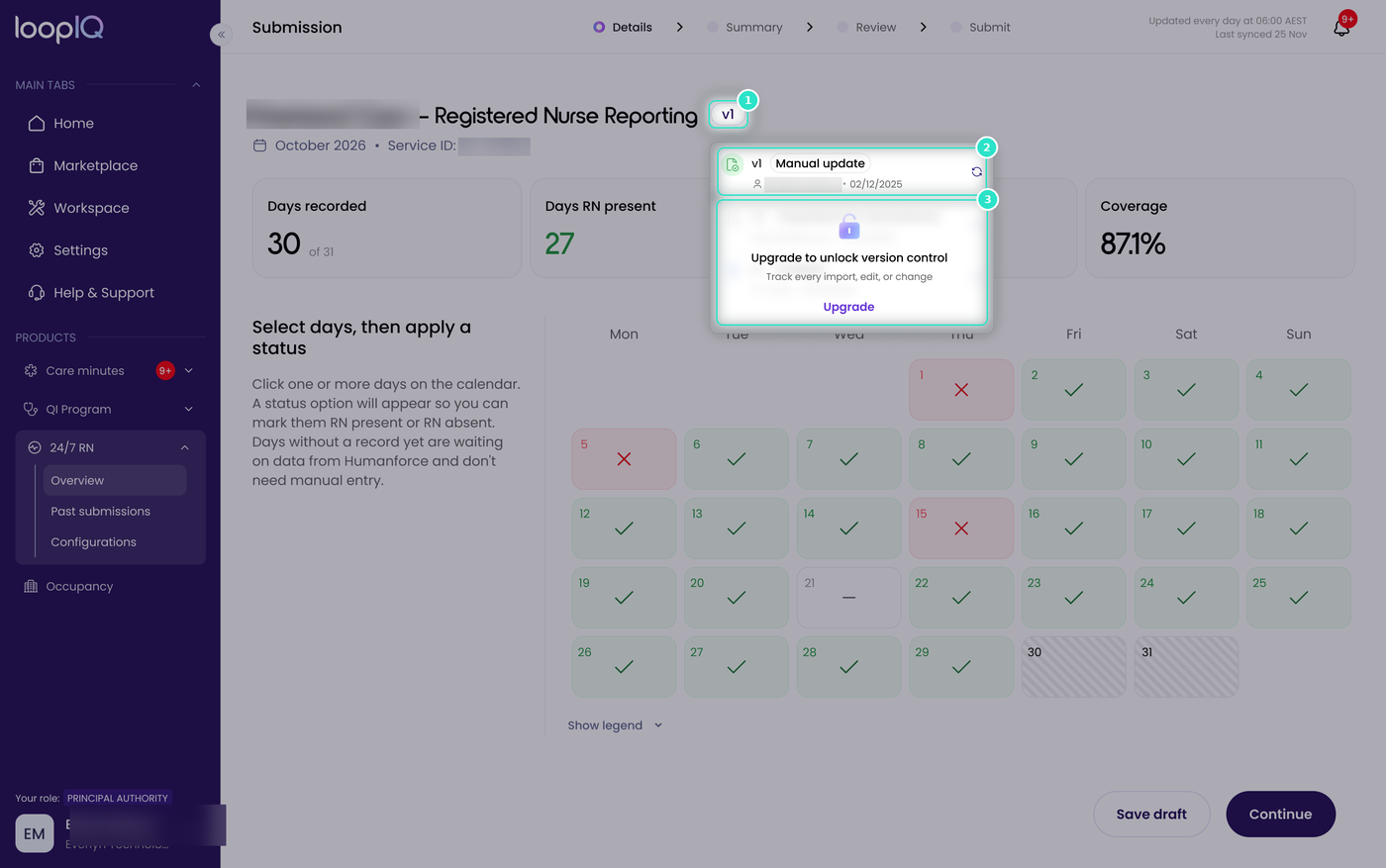
The version chip is still shown (1), and you can see the most recent entry (2), so you can tell when the submission last changed and who changed it. The rest of the history is locked behind Upgrade to unlock version control (3), and restoring an earlier version requires a paid plan.
Note: Version history covers the submission as a whole. To see how a single day reached its current status, see View a day’s history.
Was this article helpful?
Can't find what you are looking for?
Loop IQ customers - log a support ticket.
Not yet a customer? Email our support team.
 Log a support ticket
 support@loopiq.com.au