
Audit Logs - View, Filter & Export
This section covers viewing user activity in the audit log, filtering results, and exporting logs.
View Audit Logs
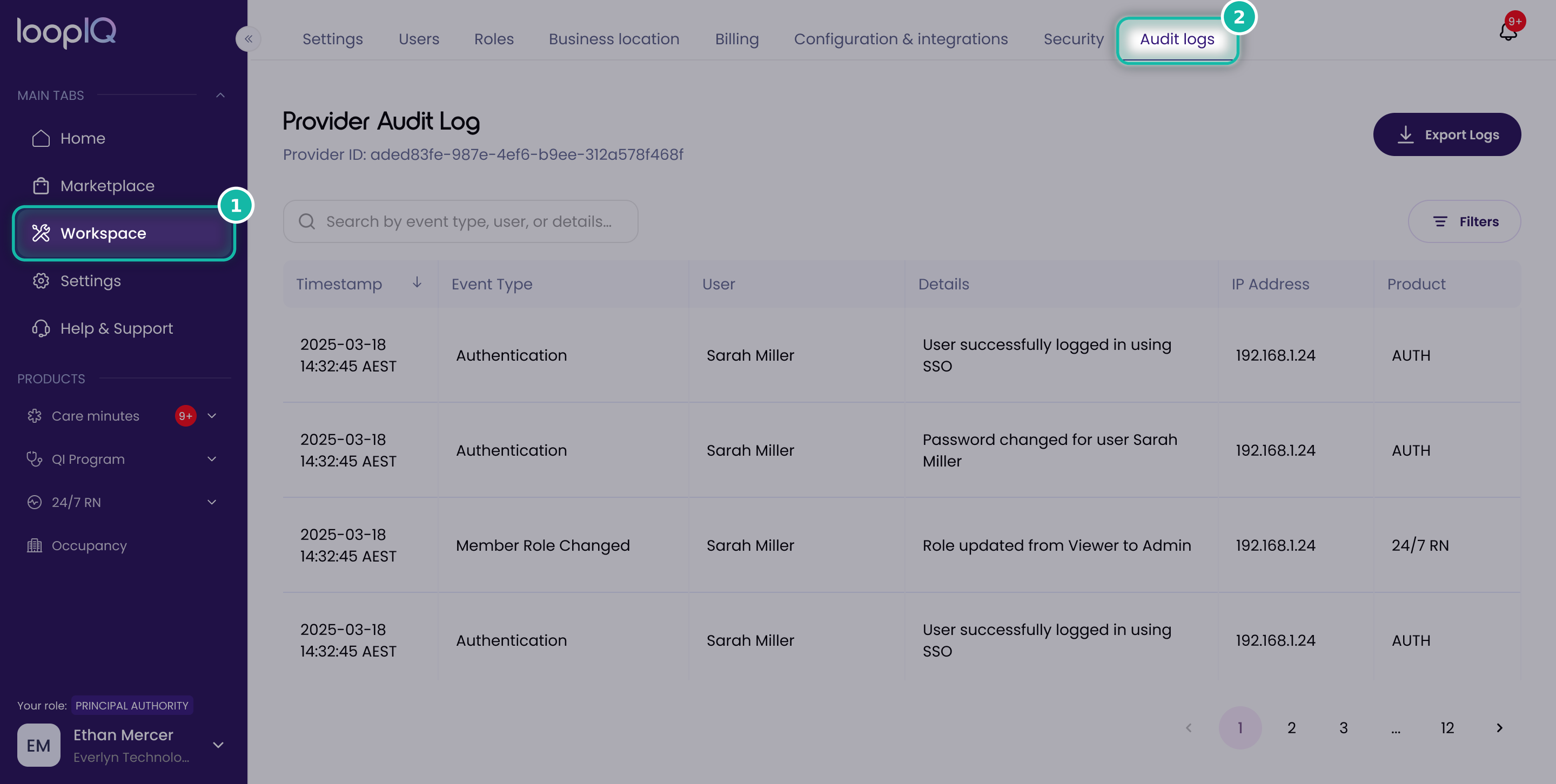
- From the Home page, click Workspace in the left menu (1).
- Select the Audit logs tab (2) to see a record of user activity, including the event type, user, details, IP address and product.
- To download a copy of the logs, click Export Logs (3).
Event types
Filter Audit Logs
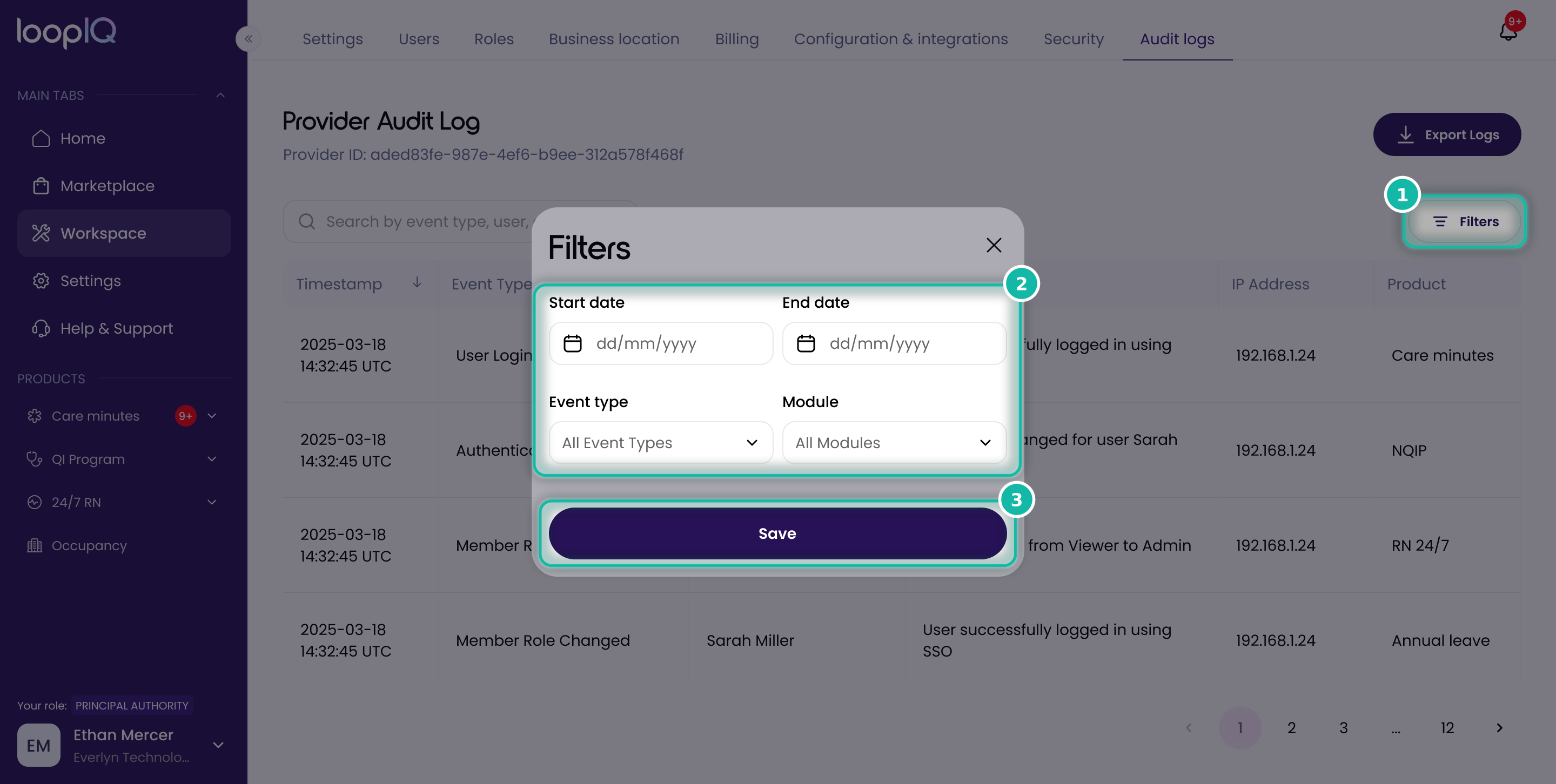
- On the Audit logs page, click Filters (1).
- Narrow your results by any of the following (2):
- Start date and End date
- Event type
- Module
- Click Save (3) to apply the filters.
Export Audit Logs
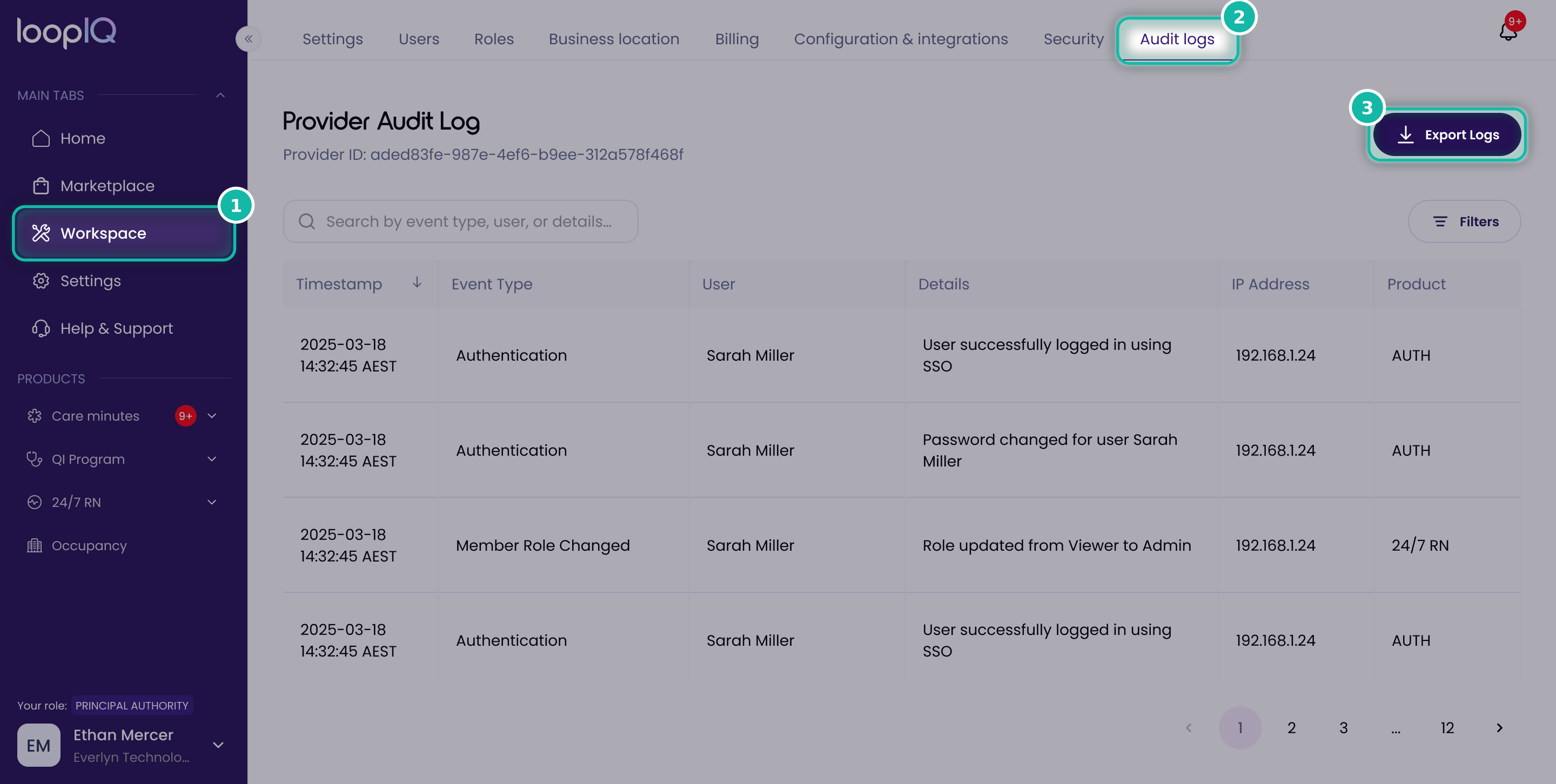
- On the Audit logs page, click Export Logs (1).
- The logs will download to your computer as an Excel file.
Note: the exported file includes more detail than the Audit logs page shows on screen, so it's useful for deeper reviews or record-keeping.
Was this article helpful?
Can't find what you are looking for?
Loop IQ customers - log a support ticket.
Not yet a customer? Email our support team.
 Log a support ticket
 support@loopiq.com.au